
VapeVM Software
VapeVM Software
Manage your vape vending machines from one dashboard.
Check which machines are online, see what needs restocking, update prices, and review orders by machine from your browser.
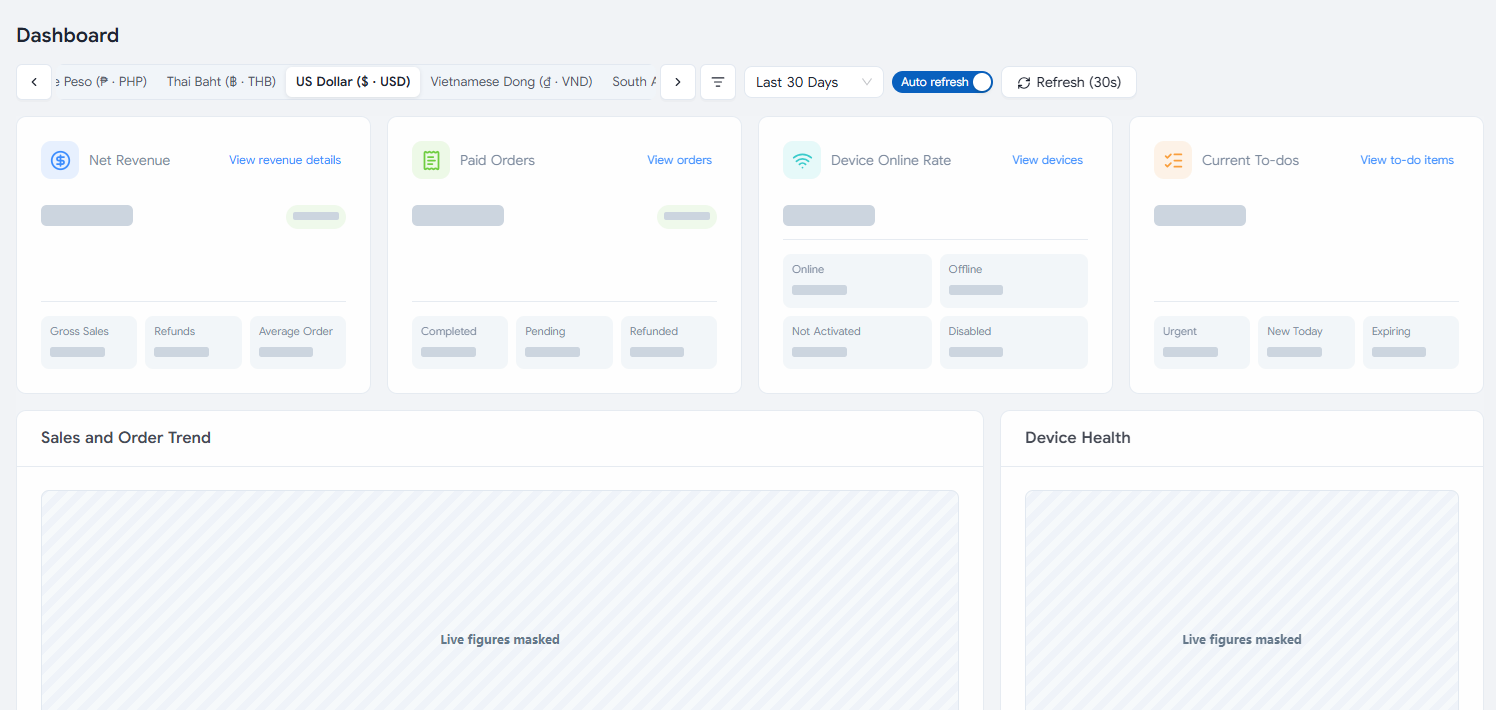
The operator workflow
Know which machine needs attention and what to do next.
02 / Machine status
See which machines need attention.
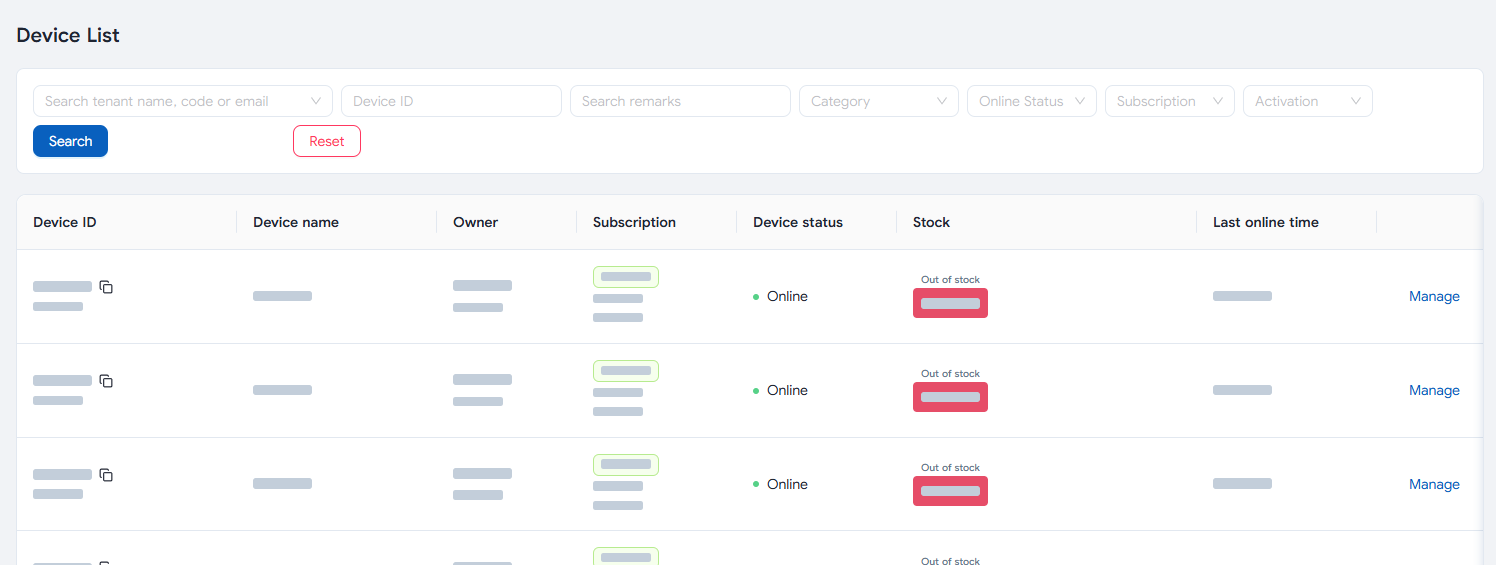
Check online status, last connection, and stock from the machine list. Open device alerts to see what needs a closer look.
- Filter machines by online status.
- Check stock status before planning a service visit.
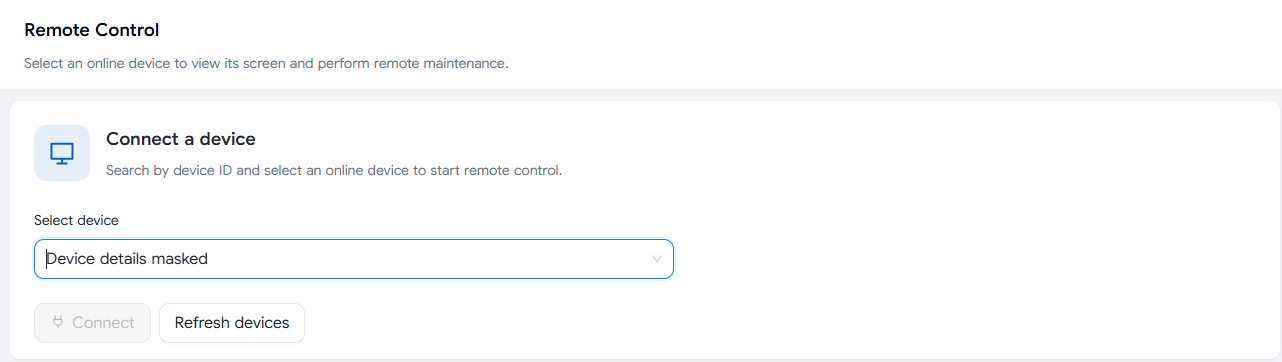
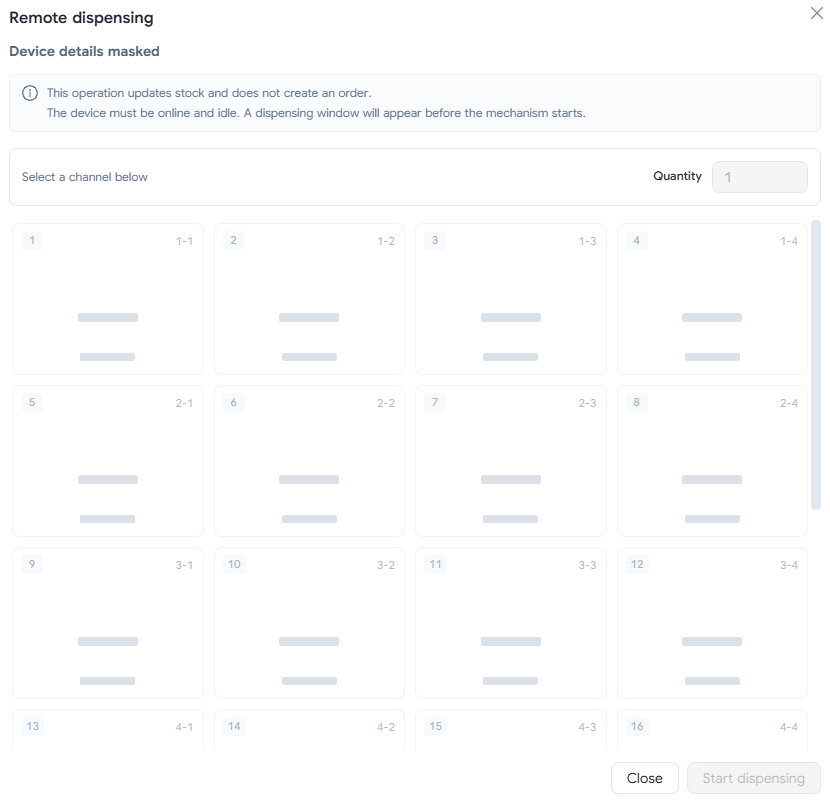
Remote machine tools
- Remote control. View and control a connected machine’s screen from your browser.
- Remote dispensing. Trigger a vend from the dashboard on a compatible online machine.
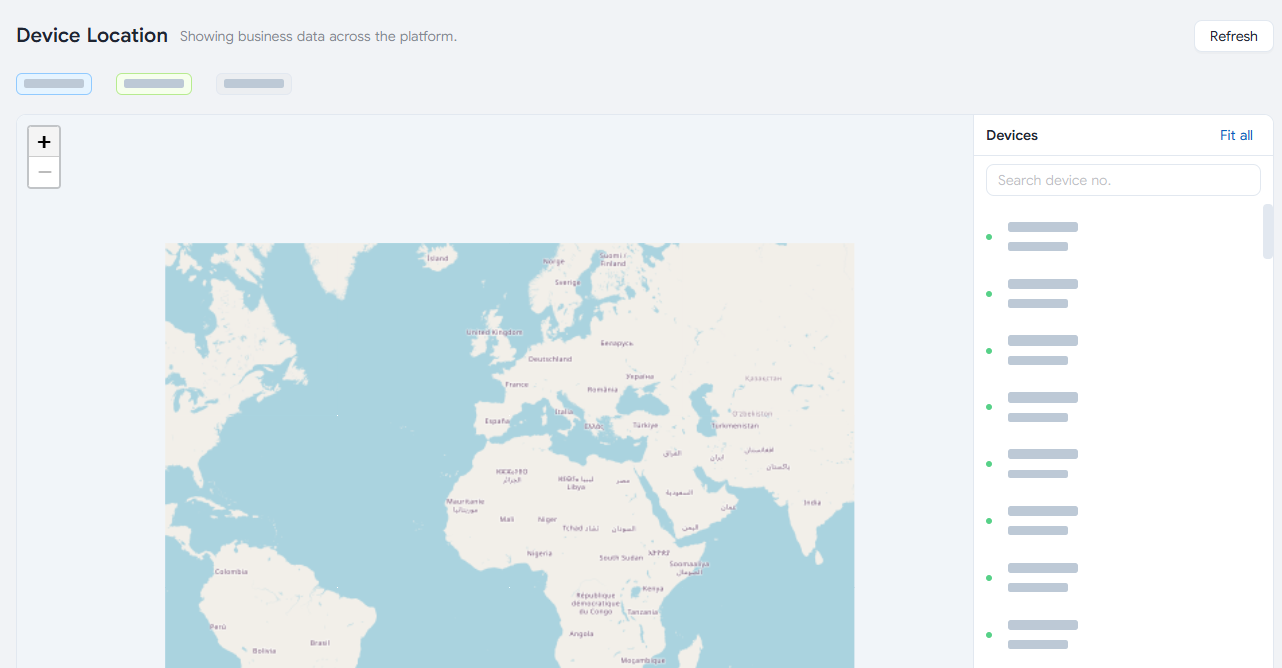
- Machine location. View your machines on a map when location data is available.
Remote control and dispensing require a compatible machine and the appropriate account permissions.
Remote tools in the dashboard
03 / Stock & pricing
Know what to bring on your next restock.
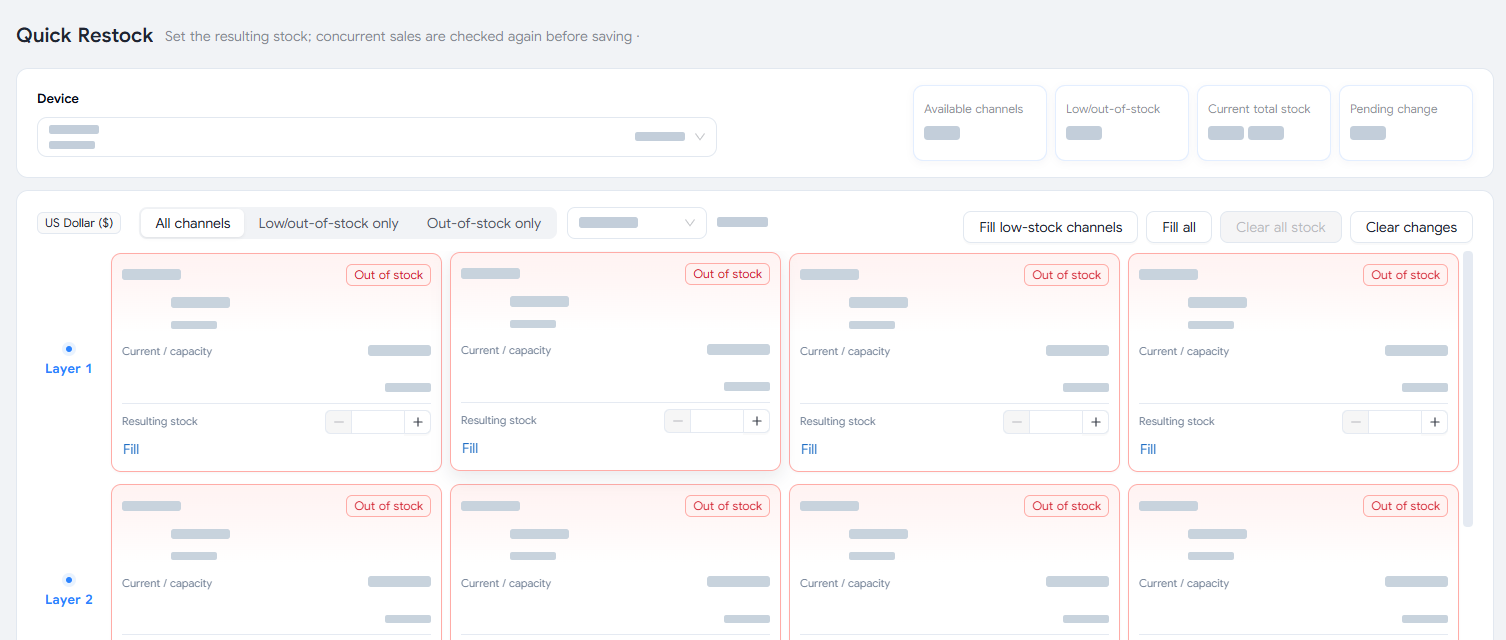
Open Quick Restock to check slot-level stock. After refilling the machine, record the new counts. Manage which products and prices are assigned to slots from the web dashboard.
- See current stock and capacity by slot.
- Update product assignments and prices on supported machines.
04 / Orders & sales
Find the order and see how each machine is selling.
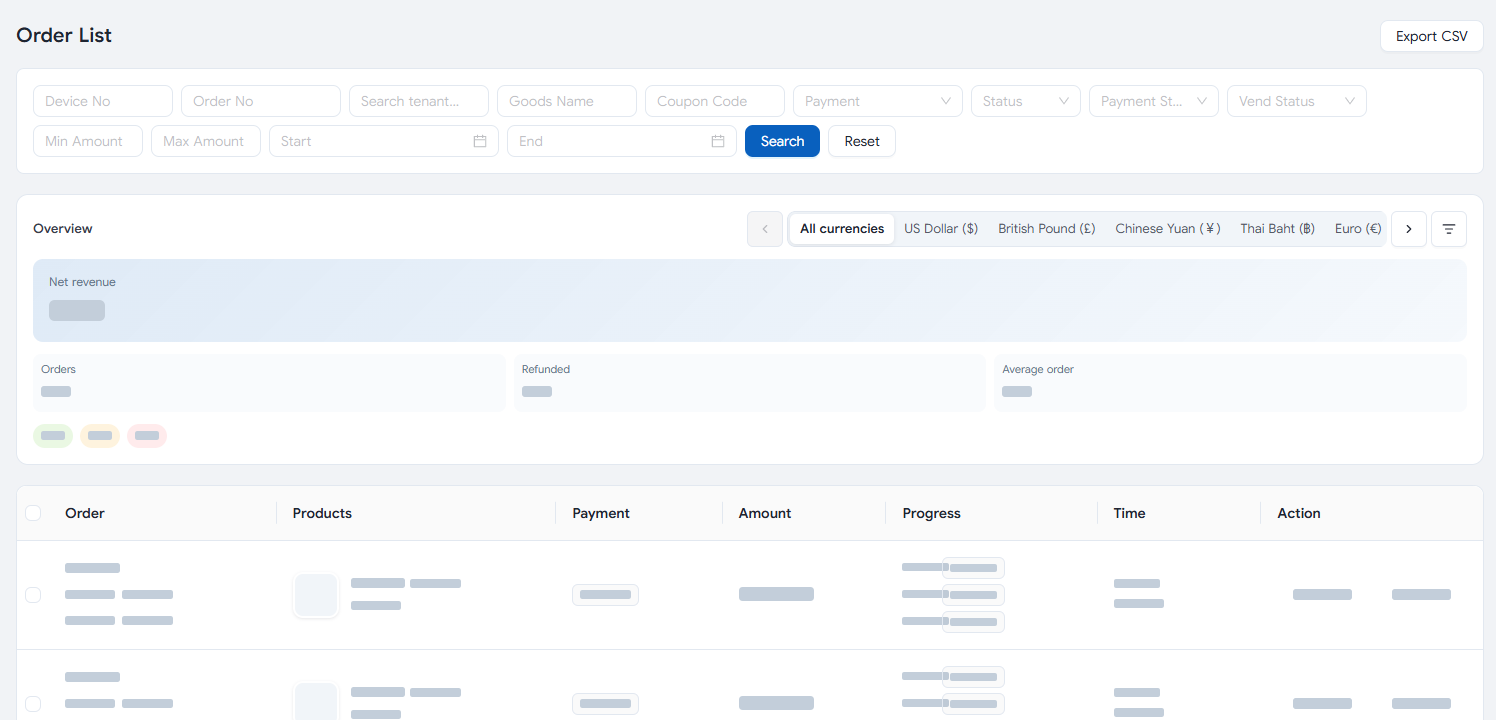
Filter orders by machine, product, or date. Use device revenue reports to review amounts collected, recorded refunds, and net sales by currency.
- Review payment and order status in one place.
- Export order records for your own reporting.
Themes & branding
Customize your vending screen.
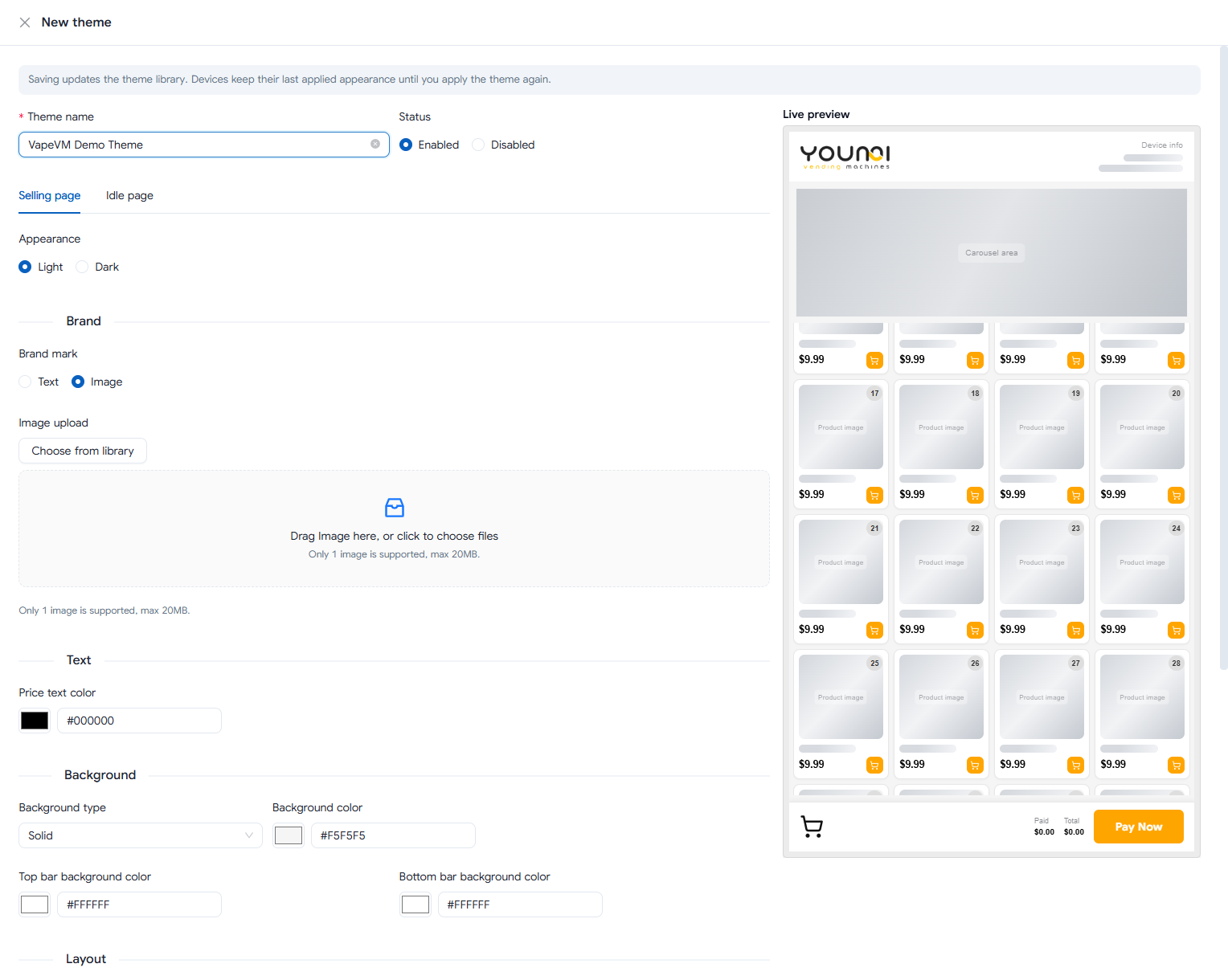
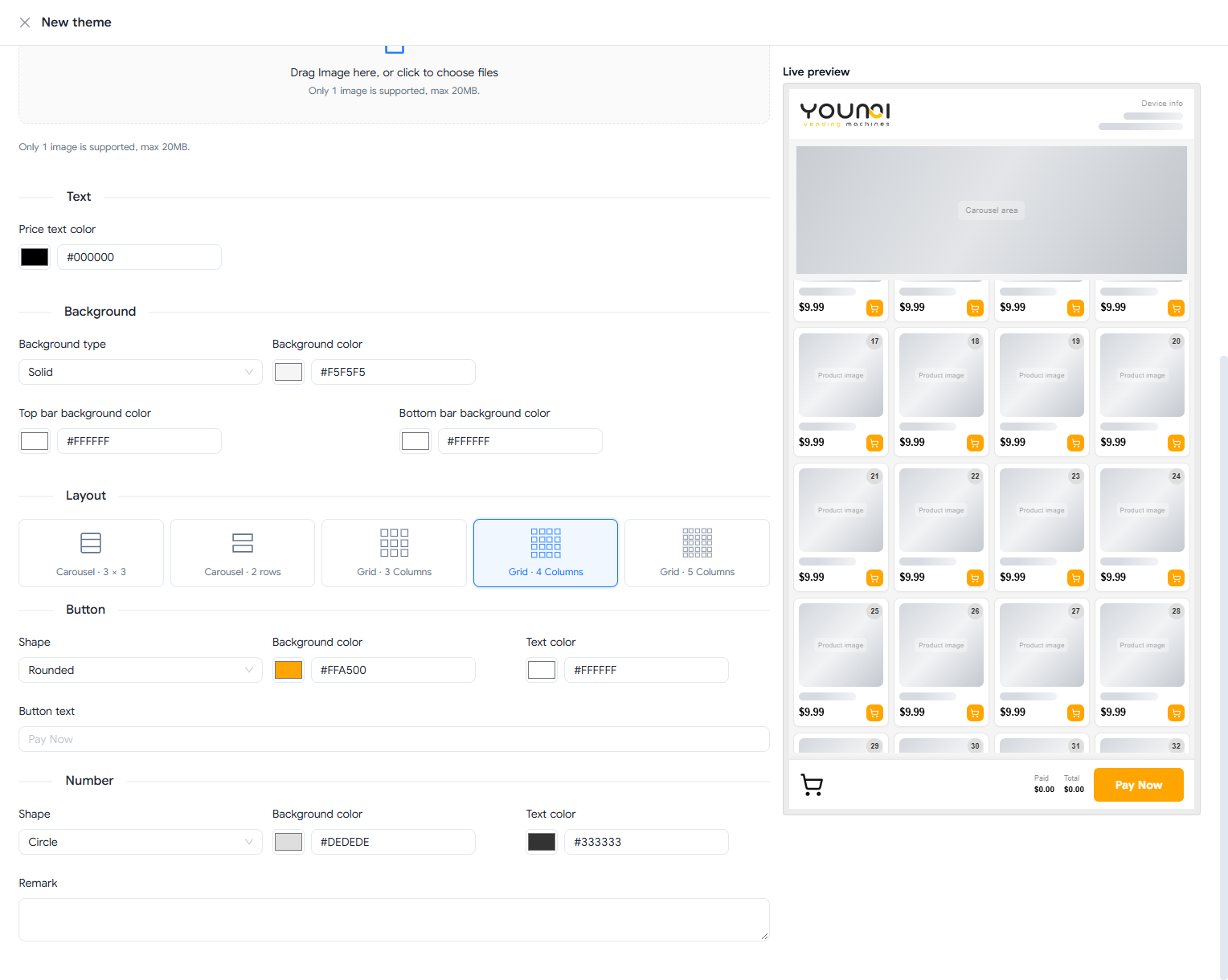
Build a theme for your machine and preview it in the dashboard before applying it to compatible devices.
Make the screen match your brand.
Use a logo image or a text brand mark. Choose a light or dark appearance and set colors for prices, the background, and the top and bottom bars.
 Enlarge screenshot ↗
Choose a product layout and style the buttons.
Choose a grid or carousel for your products. Set the checkout button label, shape, background color, and text color, then preview the result.
 Enlarge screenshot ↗
Authorized distributors only
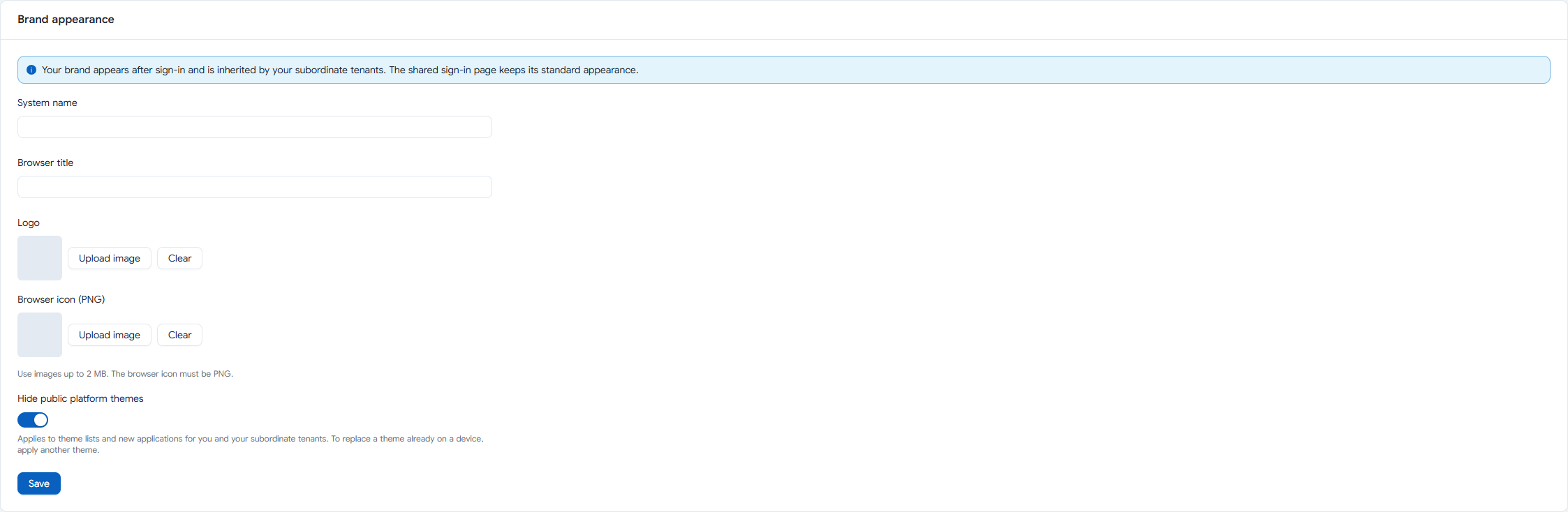
Put your logo in the admin dashboard.
Authorized distributors can set their own dashboard logo, system name, browser title, and browser icon. The brand appears after sign-in and can carry through to subordinate tenant workspaces.
 Enlarge screenshot ↗
Before you get started
Software setup & access
Can I manage more than one machine?
Yes. View and manage the connected machines assigned to your account.
Can I use it with a machine I already own?
Send us your model and approximate purchase date. We’ll confirm compatibility and the setup steps for your machine.
What software access comes with my machine?
Ask us to confirm the software term, renewal price, and available features for your model and configuration.
See how VapeVM Software works.
Tell us which machine you’re considering or already operate. We’ll walk you through the dashboard and confirm what’s available for your setup.
We’ll use these details to respond to your demo request.