
VapeVM ID Scanner & Age Verification
VapeVM ID Scanner + Software
Configure age checks from your dashboard.
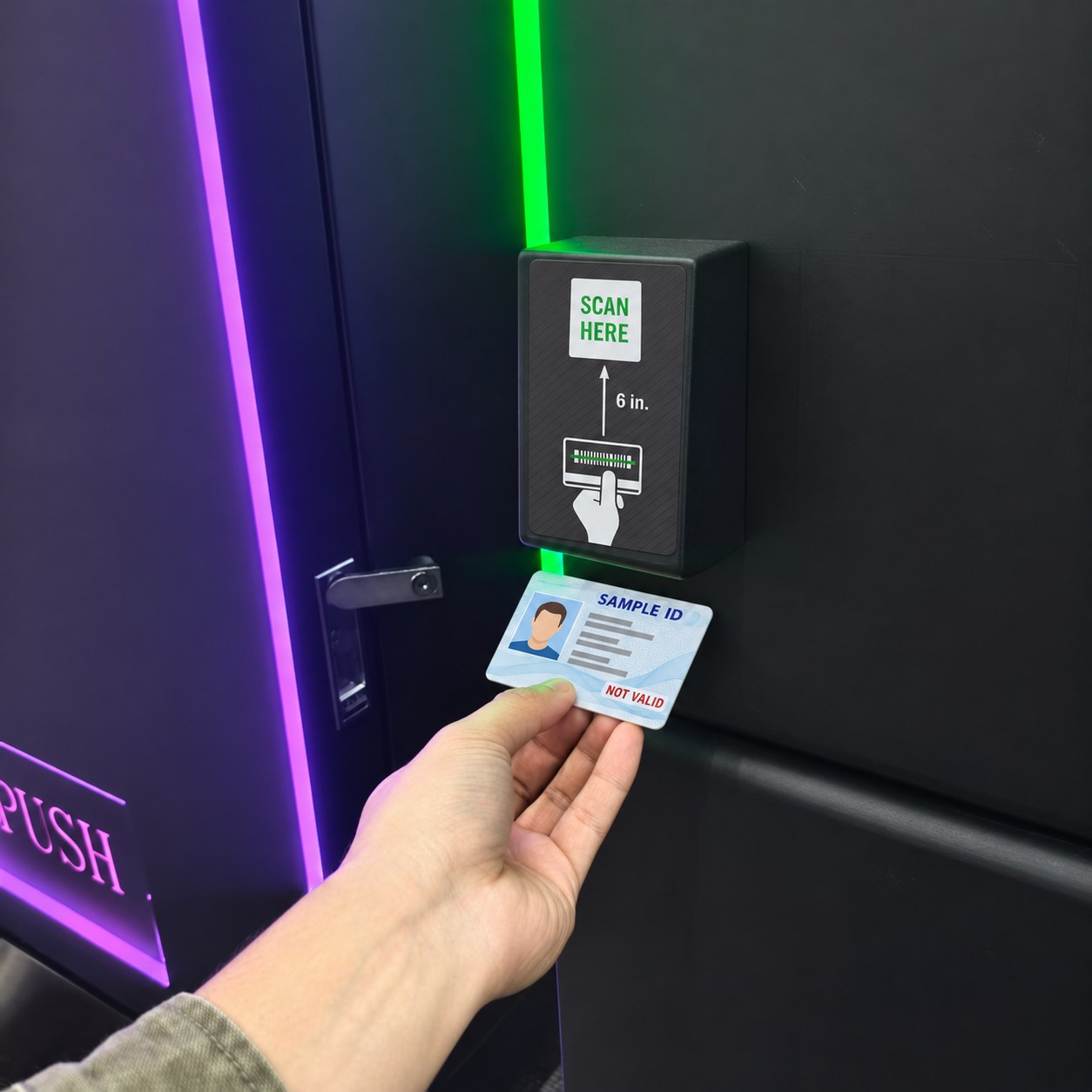
Pair an ID reader with a compatible machine. Use VapeVM Software to set a minimum age, choose which channels require a check, and configure the weekly schedule.
Inside VapeVM Software
Set the age, the scope, and the schedule.
Once compatible age-verification hardware is configured, authorized operators can manage these settings in the device dashboard.
01 · Minimum age
Set the threshold.
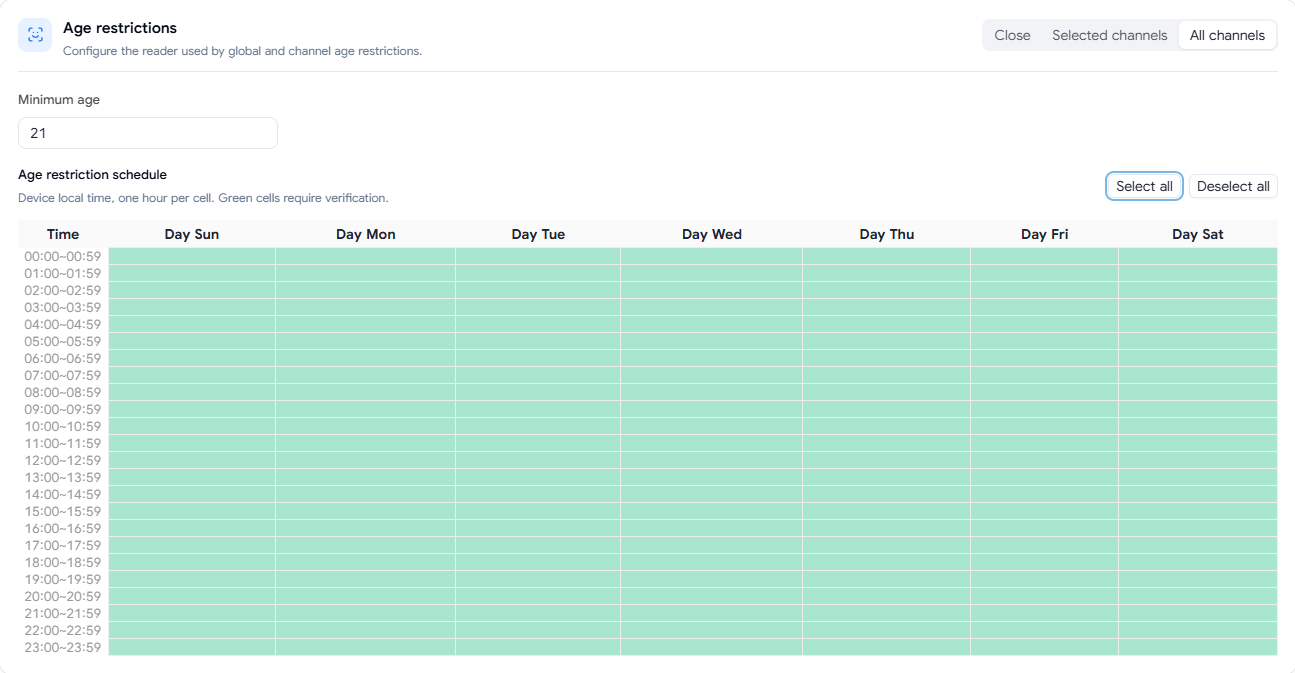
Enter the minimum age required for the applicable products. The screenshots show 21 as an example.
02 · Channel scope
All or selected channels.
Apply one rule across the machine, or set restrictions for individual channels.
03 · Weekly schedule
Choose the required hours.
Use the seven-day grid in the device’s local time. Each cell represents one hour.
Machine-wide settings
Apply one policy across the machine.
Choose Все каналы to apply the minimum age and weekly schedule to every channel. A green cell indicates an hour that requires a check.
Channel-level settings
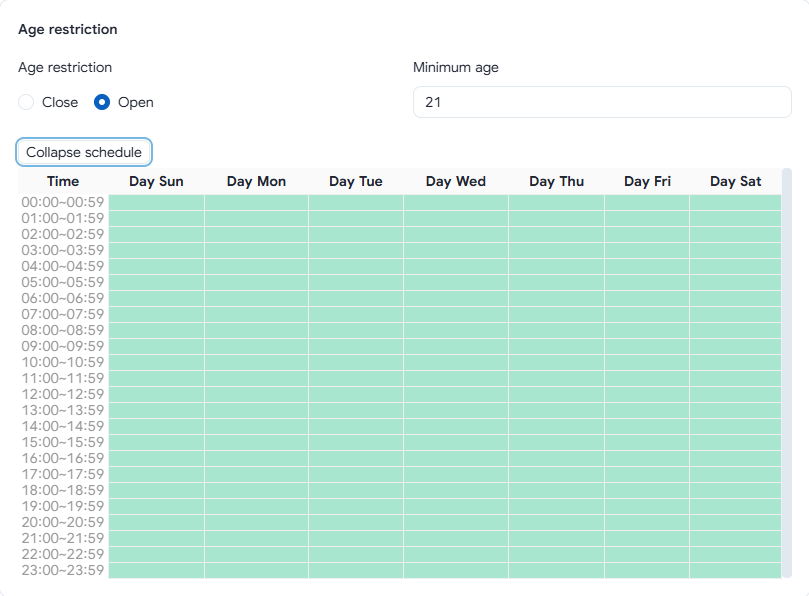
Set rules by product slot.
In Выбранные каналы mode, open an individual slot to enable its age restriction, set its minimum age, and view its own schedule.
Hardware and ordering
Find the reader for your machine.
Open the product page to view the scanner, confirm supported documents and compatibility, or send an inquiry.